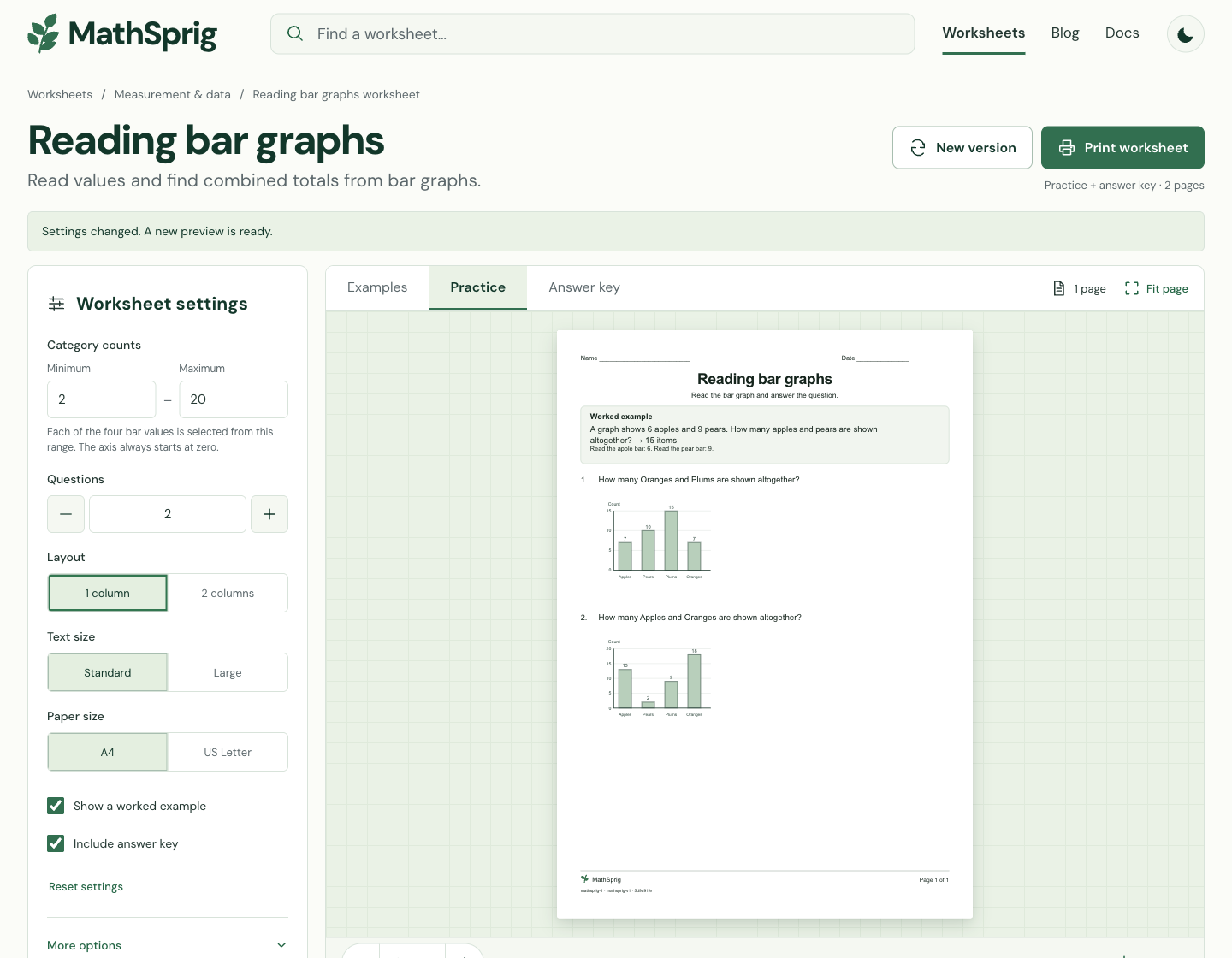
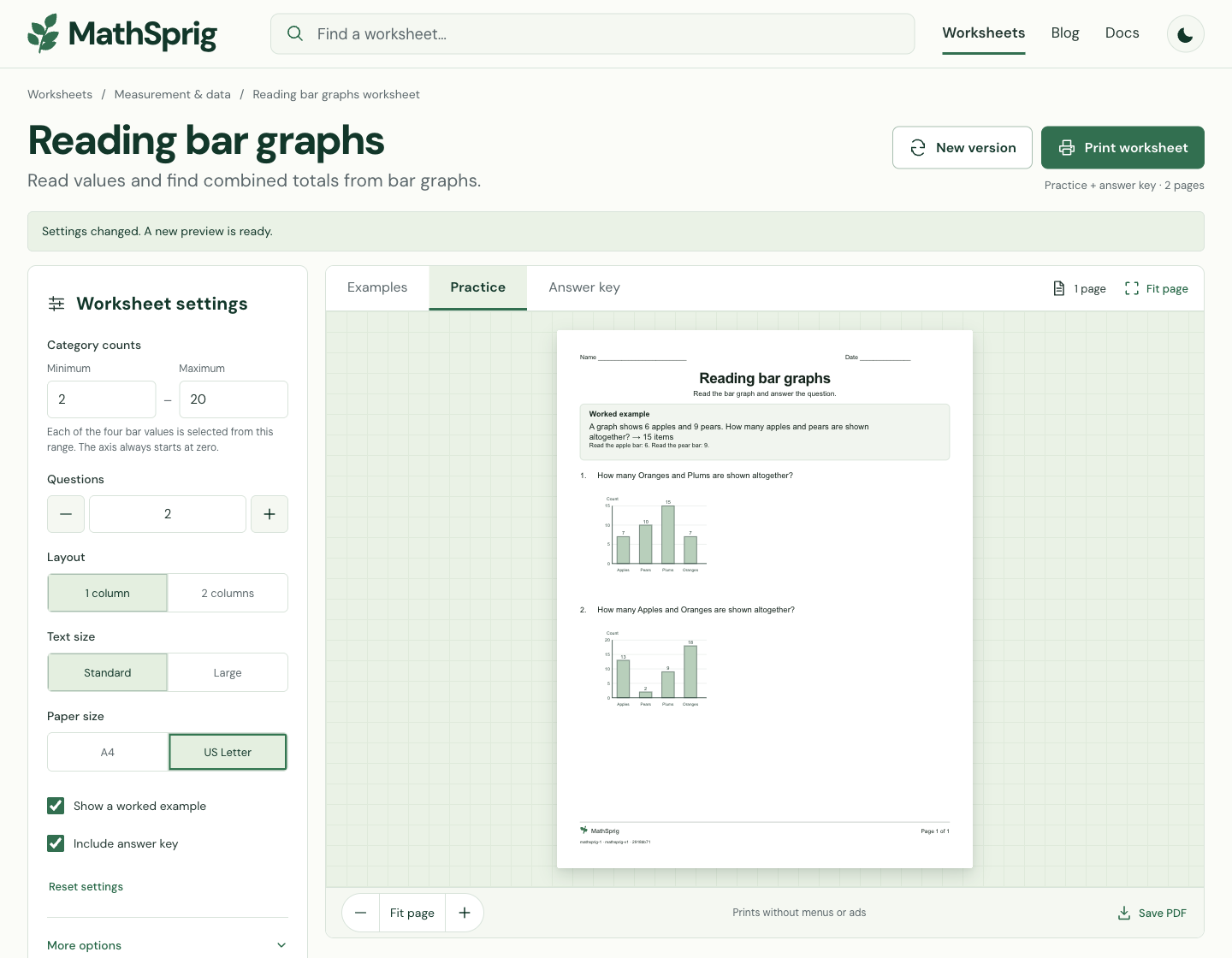
Choose A4 or US Letter in the worksheet settings before printing. The two formats have different dimensions, so match that choice in your browser’s print dialog and check the page preview.
Choose A4 or US Letter
| Paper setting | Portrait dimensions | Use it when |
|---|---|---|
| A4 | 210 × 297 mm | The loaded paper or intended PDF format is A4. |
| US Letter | 8.5 × 11 inches | The loaded paper or intended PDF format is US Letter. |
Use portrait orientation and the same paper size in both places. Look at the last question and footer as well as the top of the page. If you change paper size, check the page count and spacing again.
Match the browser print settings
- 1
Choose the output pages
Select Practice, Answer key or Examples first. In Practice, choose whether Include answer key should append the answer pages.
- 2
Open the print workflow
Choose Print worksheet. In Chrome, the browser also offers File > Print, Ctrl+P on Windows or Linux, and Command+P on Mac. The browser dialog lets you choose the destination and print settings.
- 3
Match paper and orientation
Select the same paper size as the worksheet and check portrait orientation. Review any margin or scale changes you have previously used for another website.
- 4
Inspect all preview pages
Check the right edge, bottom edge, page count and any diagram labels. If browser-added headers or footers occupy space, turn those options off when the dialog offers them and inspect again.
- 5
Make one sample
Save a PDF or print one copy before sending a larger batch. Confirm that the sample contains the questions or answers you intended.
Check diagrams and scale
For a graph worksheet, inspect the axis labels, tick marks, units and bars on the exported or printed page. A clipped label can make an otherwise visible graph incomplete. For an angle worksheet, make sure both rays and any reference marks remain visible. Use the same question numbers when comparing the screen preview and the output.
Reading bar graphsUse a small bar-graph sheet to inspect axes, labels and working space.Measuring anglesInspect a measuring-angles page with both rays visible.Scaling a page evenly changes printed lengths but preserves angles. Use labeled dimensions for area and perimeter questions; those drawings are not ruler-measuring tasks. For protractor practice, keep the original proportions so the angle is not stretched.
Save a useful PDF copy
Choose Save PDF to download the selected pages in A4 or US Letter format. The PDF uses high-resolution worksheet images, so you cannot select or copy its text. If the download does not start, use Download prepared PDF. After changing settings or views, choose Save PDF again to prepare the new pages. Open the file to check its size and page count; when printing it later, check your PDF viewer’s paper and scale settings too.
If the page does not fit
Return to the worksheet with the same seed. Check the selected paper first, then reduce the question count or switch to one column if the layout needs more room. Recheck any worked example and answer pages. Change one setting at a time so you can tell which change affected the result; do not send a large batch until the sample looks correct.
Compare the two paper previews
These are actual Reading bar graphs previews with two questions, one column and Standard text. The same seed and category-count range are used in both. Compare the selected paper control on the left with the full page on the right; the page proportions and margins change for the chosen paper.