First check where the problem appears: in the worksheet preview, the browser print preview, the downloaded PDF or the paper copy. Keep the same skill, seed and settings while checking so you can compare the same questions.
Compare the stages of output
- 1
Inspect the worksheet preview
Check that the intended view is selected and every question, label and diagram is visible. Note the affected question number and page.
- 2
Inspect the browser print preview
Choose Print worksheet and compare the same page. Check the paper size, orientation, scale, margins and any browser headers or footers.
- 3
Inspect the saved file
When saving a PDF, open the resulting file and compare it with the print preview. Check the first and last page as well as the affected diagram.
- 4
Inspect one physical copy
If the PDF is complete but the paper copy is clipped, compare the printer’s paper and scaling settings with those used for the PDF. Make one sample before printing more.
Choose a check from what you can see
| If you observe… | Check next | What to compare |
|---|---|---|
| The right or bottom edge is missing only in print output | Paper size, portrait orientation, margins and scaling in the print dialog | The same question number in the screen preview and final page. |
| A diagram or label is already cut off on screen | A one-column layout, a lower question count and the same seed | Whether the complete diagram and label fit after one change. |
| A page appears blank in print preview | Whether it is an intended answer or example page; then browser-added headers, footers and margins | The selected view, Include answer key setting and total page count. |
| Answers appear in a learner copy | Practice selection and Include answer key | Practice with Include answer key off should select questions only. |
| The answer key does not match the saved questions | Skill, seed, range, question count and generator version | Whether New version or a setting change occurred between outputs. |
| Only the physical paper copy is clipped | The loaded paper and printer-specific size or scale setting | A complete saved PDF against one physical test page. |
After each change, compare the same page again. If it makes no difference, restore the previous setting before trying the next check. This helps you keep track of which change affected the output.
Check a small diagram example
On a circle sheet, check the outline, center and radius marks, and number labels. On a bar graph, check both axes, tick labels, bars and category names. A readable answer key does not make up for a missing part of the question.
Radius, diameter, circumference and areaUse a short circle worksheet to inspect curved outlines and labels.Reading bar graphsUse a short bar-graph worksheet to inspect axes and category labels.Try 2 questions in a 1-column Layout with Standard text and the same paper format as the printer. Keep the recorded seed. If the problem disappears, increase one layout setting at a time to identify where it returns. Changing the count may change the content fingerprint, so compare the overlapping question content as well as recording the new settings.
Check apparent blank pages carefully
Scroll through the entire browser print preview or downloaded PDF before removing a page range. A separate answer output or an additional page with a small amount of content can be mistaken for an unwanted blank page. The MathSprig preview shows the active view; check the export summary and Include answer key setting to learn whether answers will be appended. If the final page contains no worksheet content, review browser headers, footers and margins, then compare a lower-density worksheet before deciding which pages to print.
Record a reproducible example
- The exact worksheet URL or skill ID.
- The generator version, complete seed, all number settings and question count.
- Layout, Text size, Paper, Show a worked example, selected view and Include answer key.
- The browser name and version, operating system, and whether the issue is on screen, in print preview, in a PDF or on paper.
- The affected page and question numbers, plus screenshots or the saved output showing the problem.
- Each change tried and what actually happened.
Keep learner names and completed student work out of the report. A small example with its settings is easier to check than a large unrelated sheet. If the problem comes and goes, say so and keep the PDF or screenshot that shows it.
If PDF export fails while offline
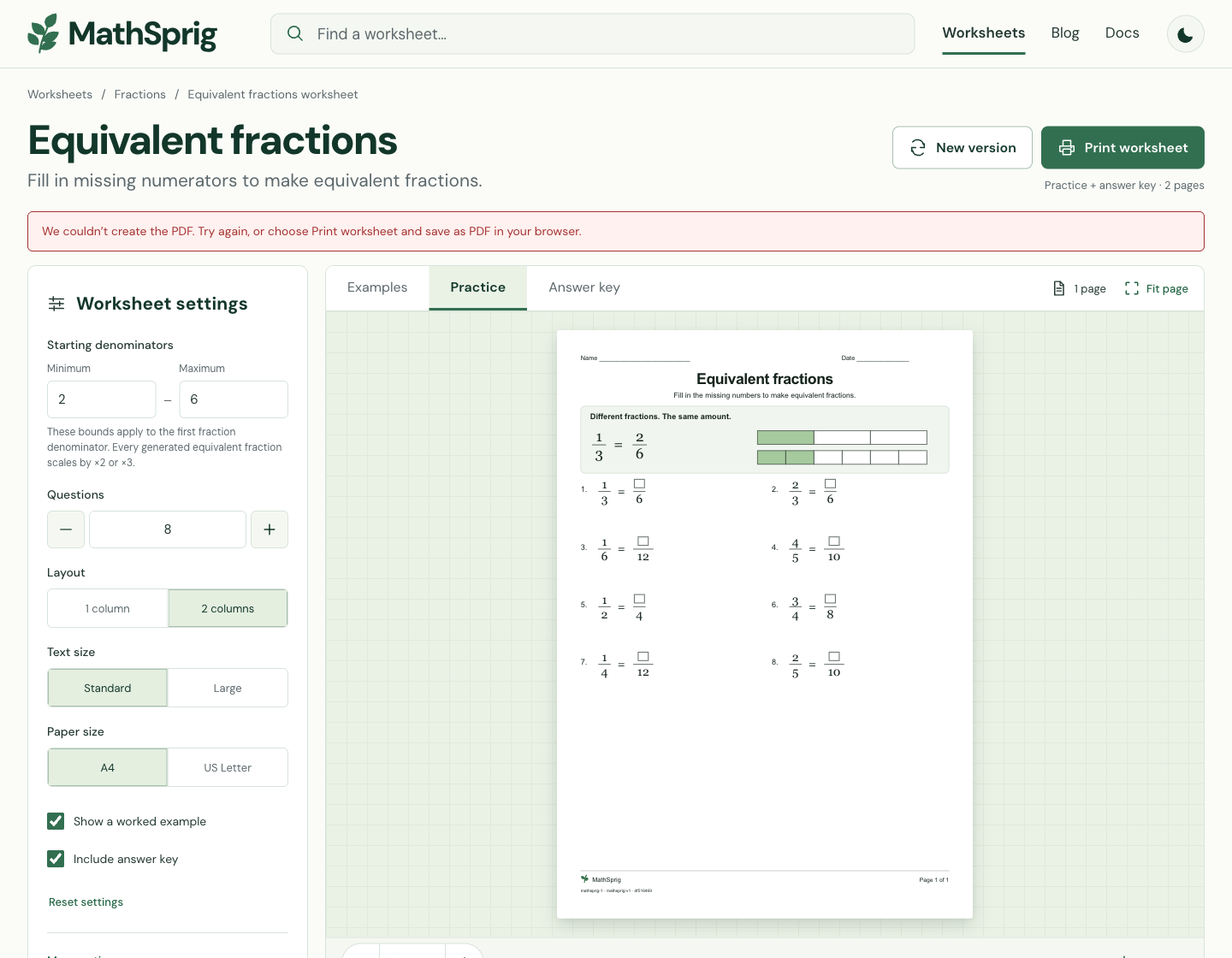
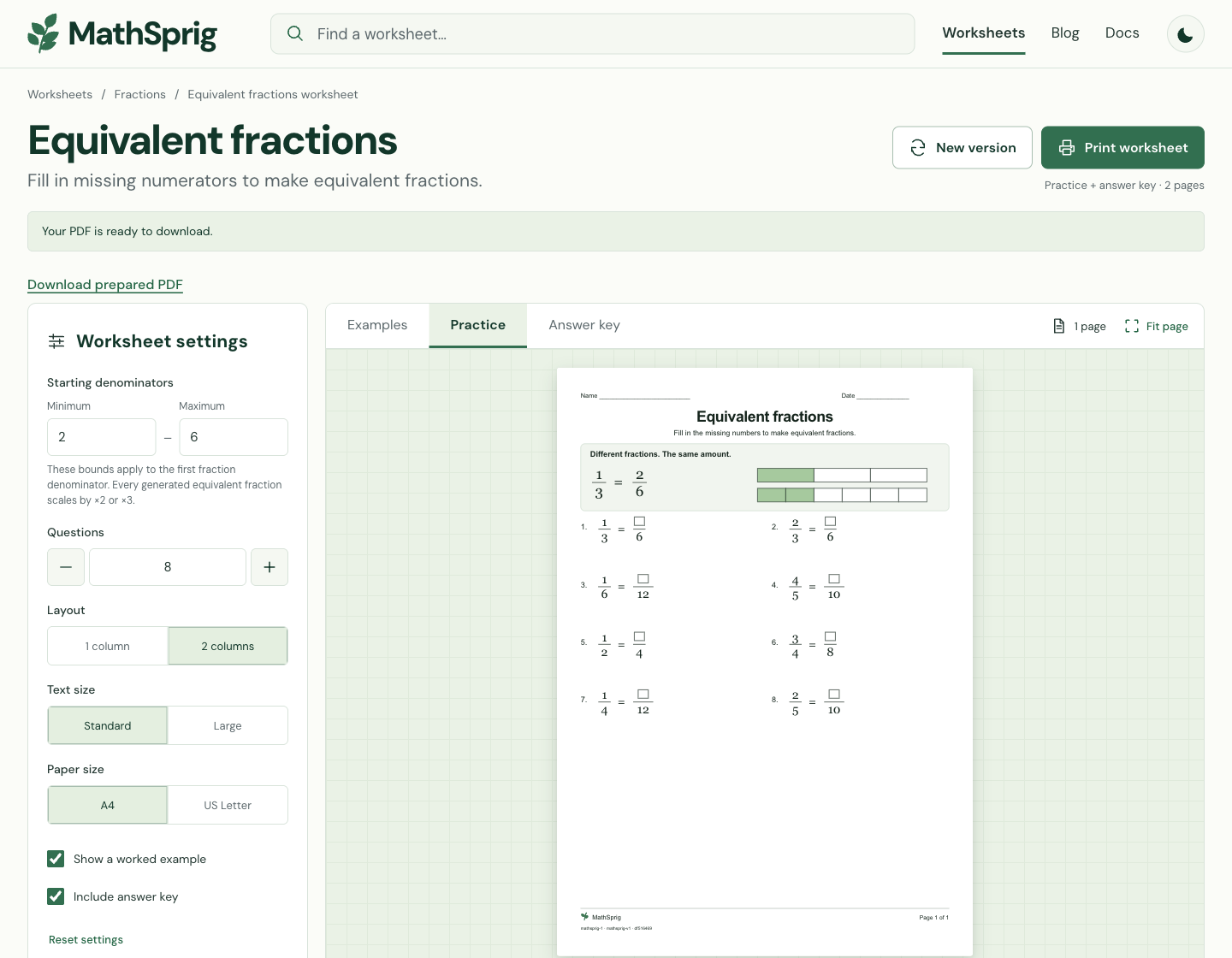
If the connection drops before your first PDF download, export may fail while the worksheet stays visible. Reconnect, record any custom settings, reload the page and choose Save PDF again. The screenshots below show a failed offline download followed by a successful retry after reconnecting and reloading.
| What happened | What appeared | What to do |
|---|---|---|
| Fresh page, then browser offline before first Save PDF | The PDF could not be created; the last worksheet remains visible. | Reconnect, reload and select Save PDF again. |
| Connection restored; same default worksheet settings | The PDF is ready message and prepared download link appear; the file downloads. | Open the saved PDF and check its pages before printing. |