The range means something different on each skill. For addition, it sets the numbers being added. For a rectangle, it sets the side lengths. Read the label and help text before entering Minimum and Maximum.
Read what the range controls
On Column addition, a range of 100–300 allows 157 + 268. Both addends are inside the range, even though the answer, 425, is above 300. The range limits the numbers in the question, not their sum.
Column additionTry Column addition and check its addend range and regrouping option.For a rectangle with sides of 3 cm and 5 cm, the area is 15 cm² and the perimeter is 16 cm. The side-length range controls those starting dimensions, not either answer.
Rectangle area and perimeterCheck the side-length range on Rectangle area and perimeter.Use valid values
| Control | Valid example | Invalid example or check |
|---|---|---|
| Minimum and Maximum | A permitted minimum that is no greater than the permitted maximum | A minimum of 8 with a maximum of 3 reverses the interval. |
| Skill limits | Values inside the limits shown on that tool | A number outside that skill’s stated bounds must be corrected. |
| Integer-only fields | A whole number when the field requires one | 2.5 is not valid for an integer-only field. |
| Questions | 1 through 24, using a whole number | 0, 25 and 3.5 are outside the supported choices. |
| Layout | 1 column or 2 columns | There is no custom three-column mode. |
| Text size | Standard or Large | There is no arbitrary font-size entry. |
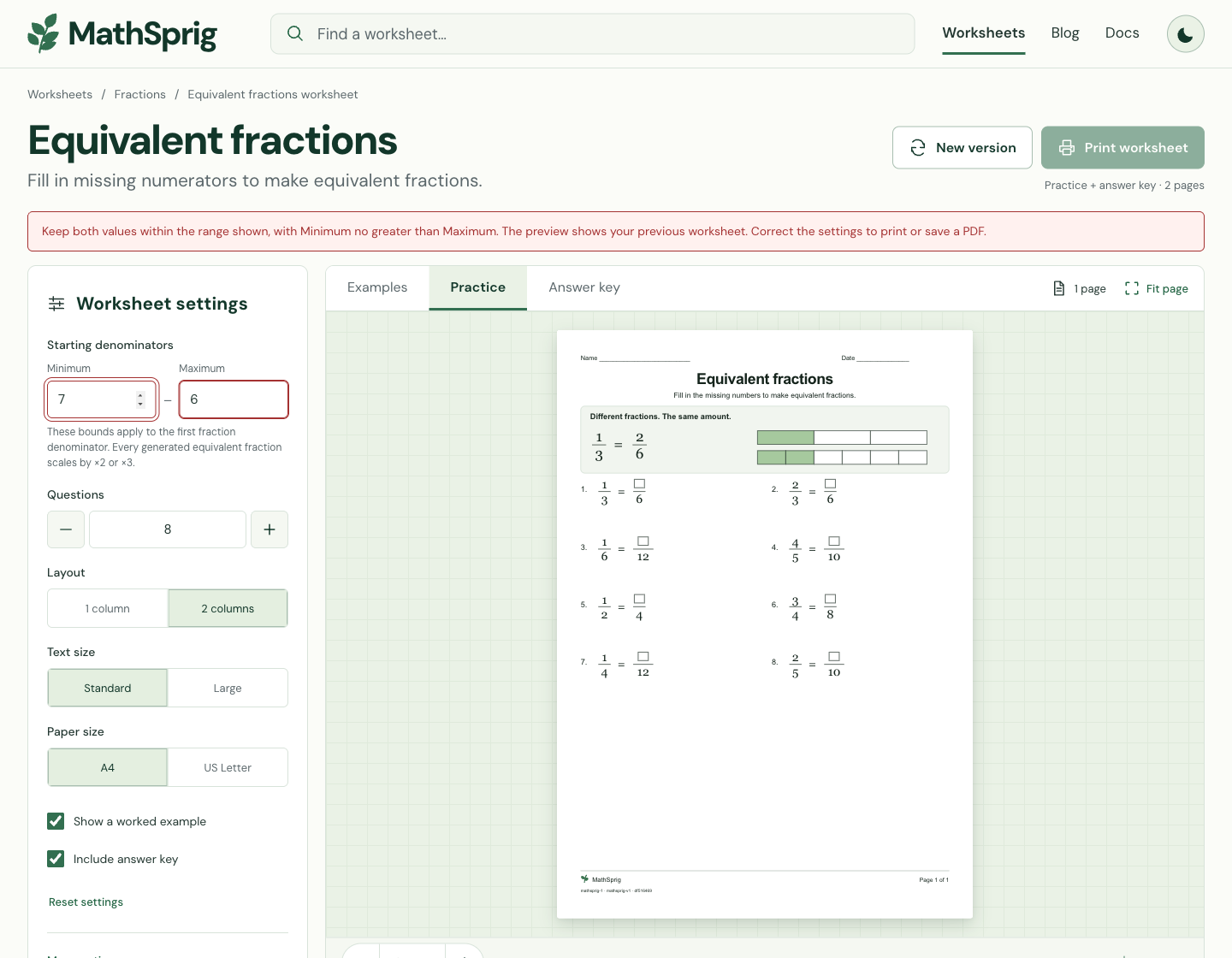
If a field is highlighted, correct it before exporting. The preview keeps the previous valid sheet while you edit, and printing and PDF download wait for valid settings. A small range can also produce repeated questions; it does not guarantee that every value will appear.
Balance count, text size and working space
- 1
Choose a short count first
Start with a few questions when you are checking a new skill. Increase Questions only after reviewing how much working space each question needs.
- 2
Compare one and two columns
Use 1 column when a diagram or calculation needs more width. Use 2 columns when the questions remain readable and there is enough space to write.
- 3
Check Large text
Switch Text size to Large if that is more useful for the activity. Then inspect all pages again because larger text changes the layout space.
- 4
Review extra content
Show a worked example and Include answer key add content to the selected output. Check the first and last page rather than relying on a fixed expected page count.
Change one option at a time
Keep the seed fixed while comparing layouts so that a new question set does not distract from the spacing change. For example, view the same eight-question sheet in two columns, then in one column. Check the longest prompt and the largest diagram. Restore the preferred layout before saving the final version.
Clear saved preferences
Select Remember paper, layout and text size on this device to save those choices in your current browser. Clear saved preferences removes them; Reset settings returns the current worksheet to its defaults. Neither option saves a history of your worksheets, so keep any PDF or seed record you need before resetting.
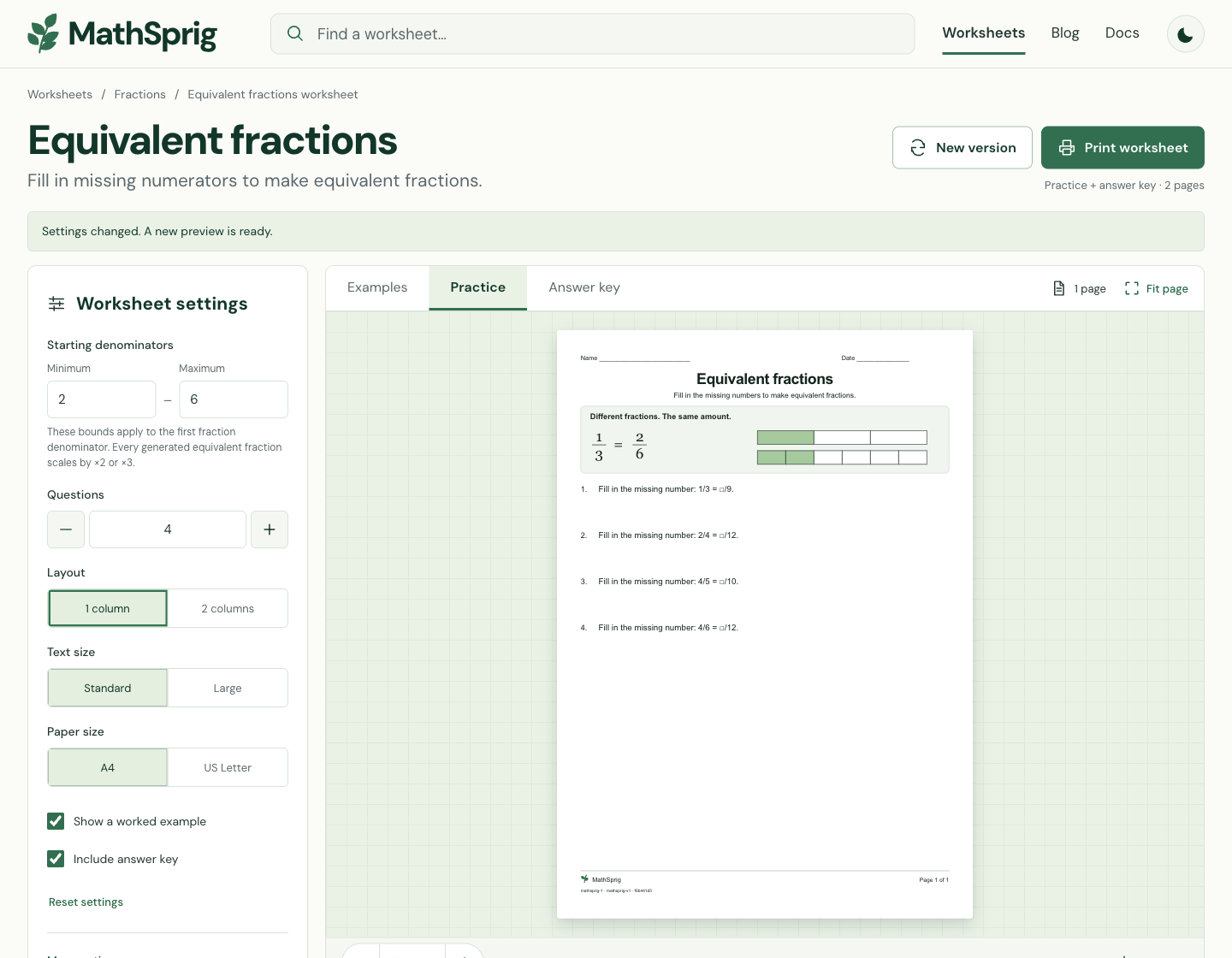
Compare an invalid range with a smaller valid sheet
Printing and PDF download pause while the tool checks a change. If the settings are invalid, your previous questions stay visible. Correct the highlighted fields and wait for the ready message before exporting.