You can make a worksheet and check its answers without an account. This walkthrough uses Equivalent fractions: each question has a missing numerator. Open the tool below to follow along.
Equivalent fractionsOpen Equivalent fractions to follow the walkthrough.1. Choose the skill and inspect its example
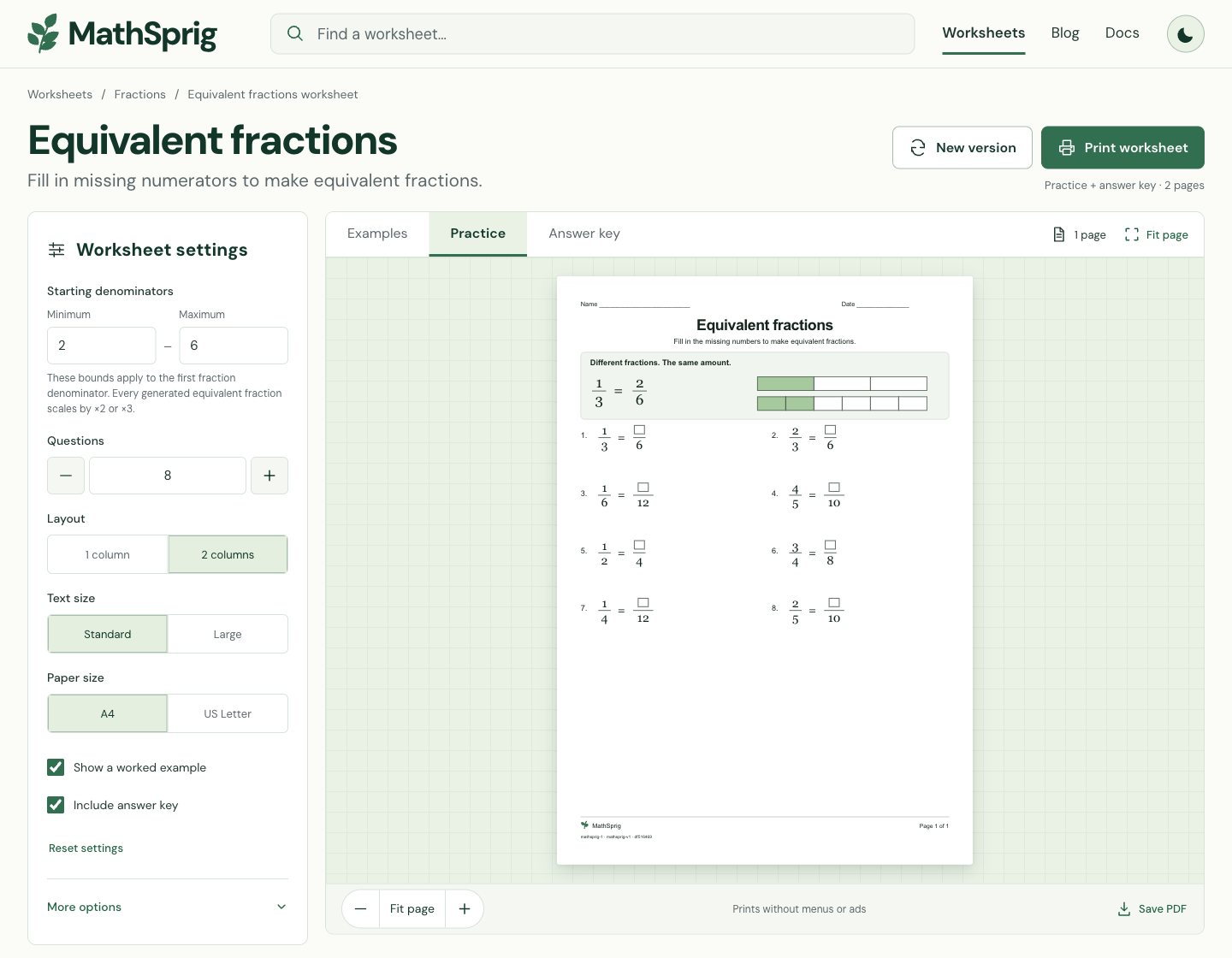
Read the range help, then open Examples to see the method. Practice shows your questions; Answer key shows their final answers. You can switch between these views without changing the question set. For detailed solutions to each question, open Answers and steps farther down the page.
2. Set up a small sheet
| Control | Walkthrough setting | Why it matters |
|---|---|---|
| Minimum / Maximum | 2 / 6 | Sets the starting-denominator range for the fixed sample. |
| Questions | 8 | Keeps the first sheet short enough to inspect. |
| Layout | 2 columns | Places the questions in two columns. |
| Text size | Standard | Uses the standard worksheet text size. |
| Paper | A4 for the fixed sample | Use US Letter instead when needed, then check that format’s output. |
| Show a worked example | On | Includes a method example with the practice output. |
| Include answer key | On for the default sample | Appends the matching answer pages after the Practice questions; turn it off for a question-only copy. |
| Worksheet seed | mathsprig-v1 | Provides a repeatable starting seed when all other settings and the generator version match. |
For this sample, set Starting denominators to 2–6 and use the choices in the table. If you have changed the seed, open More options, enter mathsprig-v1 and choose Re-create. With generator mathsprig-1, these settings give Content ID df516469. Changing paper, layout or output options can change the ID even when the questions stay the same.
3. Review the practice questions
Open Practice and look through every page. Check the question count, working space and diagrams. Choose New version if you want different questions. To reprint the current set, keep the seed and settings as they are.
| Fixed sample question | Missing numerator | Check |
|---|---|---|
| 1/3 = □/6 | 2 | Multiply numerator and denominator by 2. |
| 2/3 = □/6 | 4 | Multiply numerator and denominator by 2. |
| 1/6 = □/12 | 2 | Multiply numerator and denominator by 2. |
| 4/5 = □/10 | 8 | Multiply numerator and denominator by 2. |
| 1/2 = □/4 | 2 | Multiply numerator and denominator by 2. |
| 3/4 = □/8 | 6 | Multiply numerator and denominator by 2. |
| 1/4 = □/12 | 3 | Multiply numerator and denominator by 3. |
| 2/5 = □/10 | 4 | Multiply numerator and denominator by 2. |
These are the eight questions from the recorded sample. In each row, multiply the numerator by the same factor as the denominator. If you change the seed or range, use the Answer key for your new sheet.
4. Choose the output and print
- 1
Check the answers
Open Answer key and compare it with Practice. For the method behind each answer, open Answers and steps below the worksheet.
- 2
Choose the pages
For questions only, select Practice and turn Include answer key off. Turn it on to add answers after the questions. Select Answer key for answers only, or Examples for the worked example only.
- 3
Print or save a PDF
Choose Print worksheet to open your browser’s print dialog. Check the paper size and page preview. Or choose Save PDF to download a file; if the download does not start, select Download prepared PDF. Open the file to check its pages. The PDF contains worksheet images, so its text cannot be selected.
Try a second skill
Try Column addition next. Its range controls the numbers being added, and it offers a regrouping choice. The paper, layout and output controls work the same way. If you add more questions, check all the pages before printing.
Column additionTry the same workflow with column addition.